




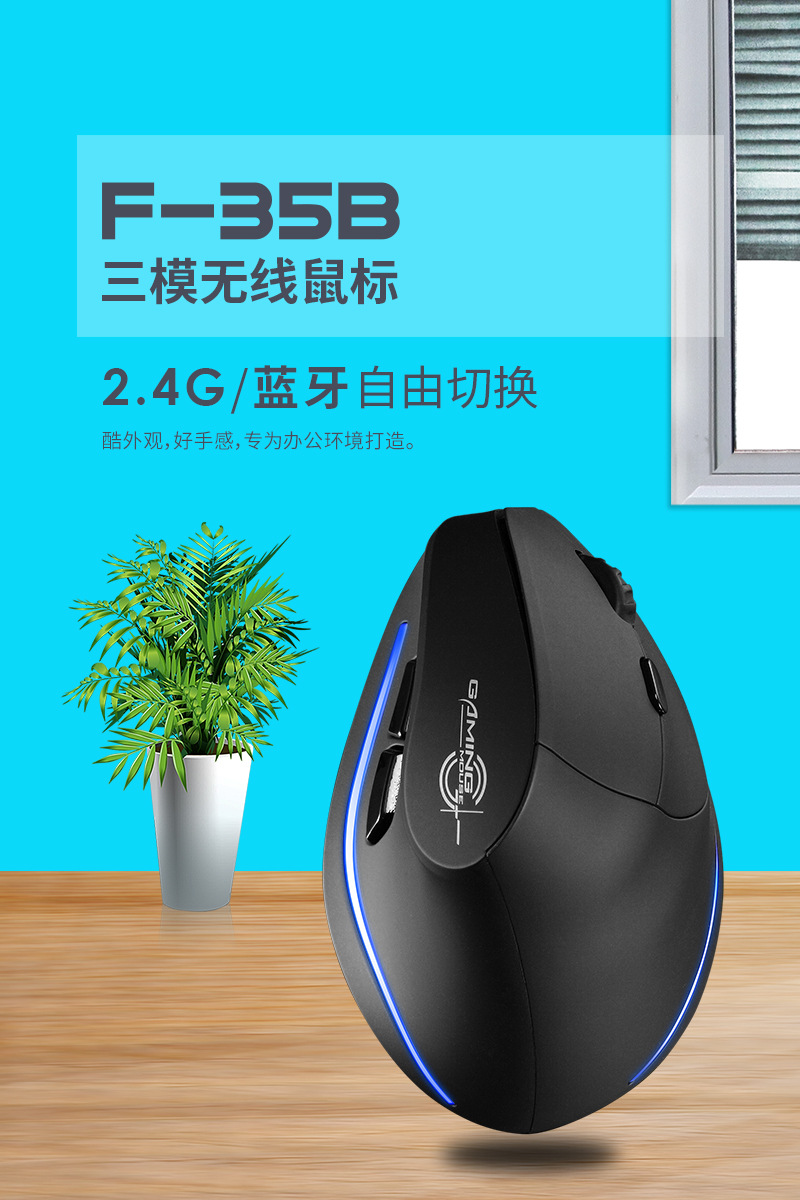
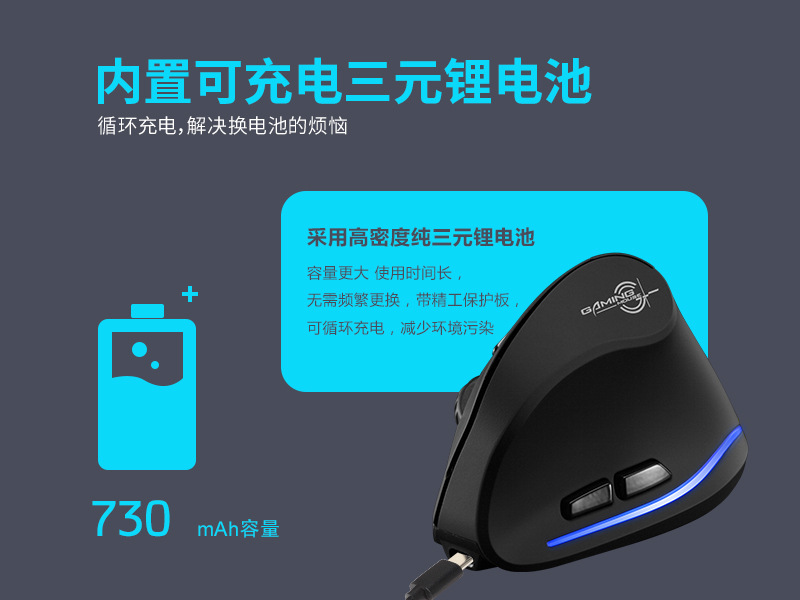
产品型号:F-35B,7个按键,采用700毫安纯三元聚合物,带精工保护板,方案使用博通,sensor使用原相PAW3212, 可同时在三台电脑使用,通过底部的按键进行切换,兼容所有的带蓝牙电脑。4个独立指示灯,2.4G独立指示灯红色,蓝牙1指示灯蓝色,蓝牙2指示灯蓝色,充电指示灯绿色,低电压警报灯红色。
本工厂通过ISO9001体系认证,所有的产品均是原创私模,可做OEM,ODM,标准统一按欧美标准,可以通过任何检测认证。


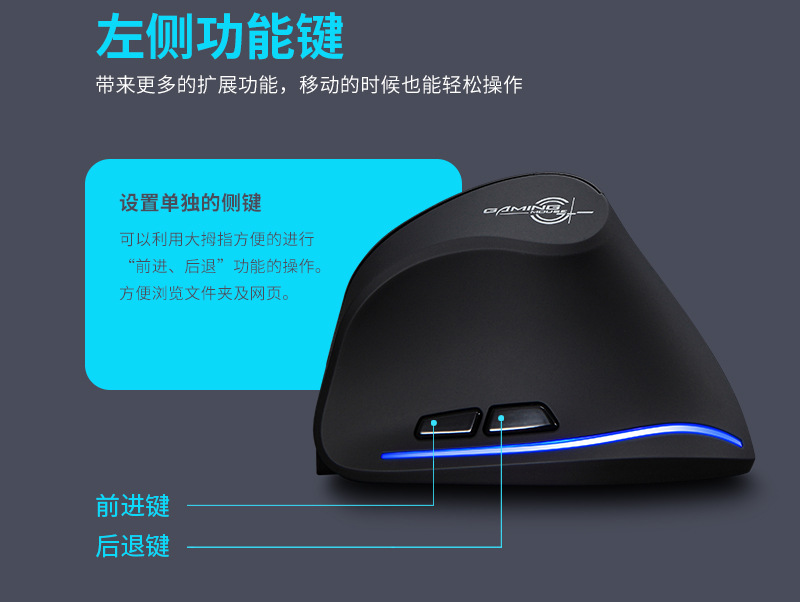
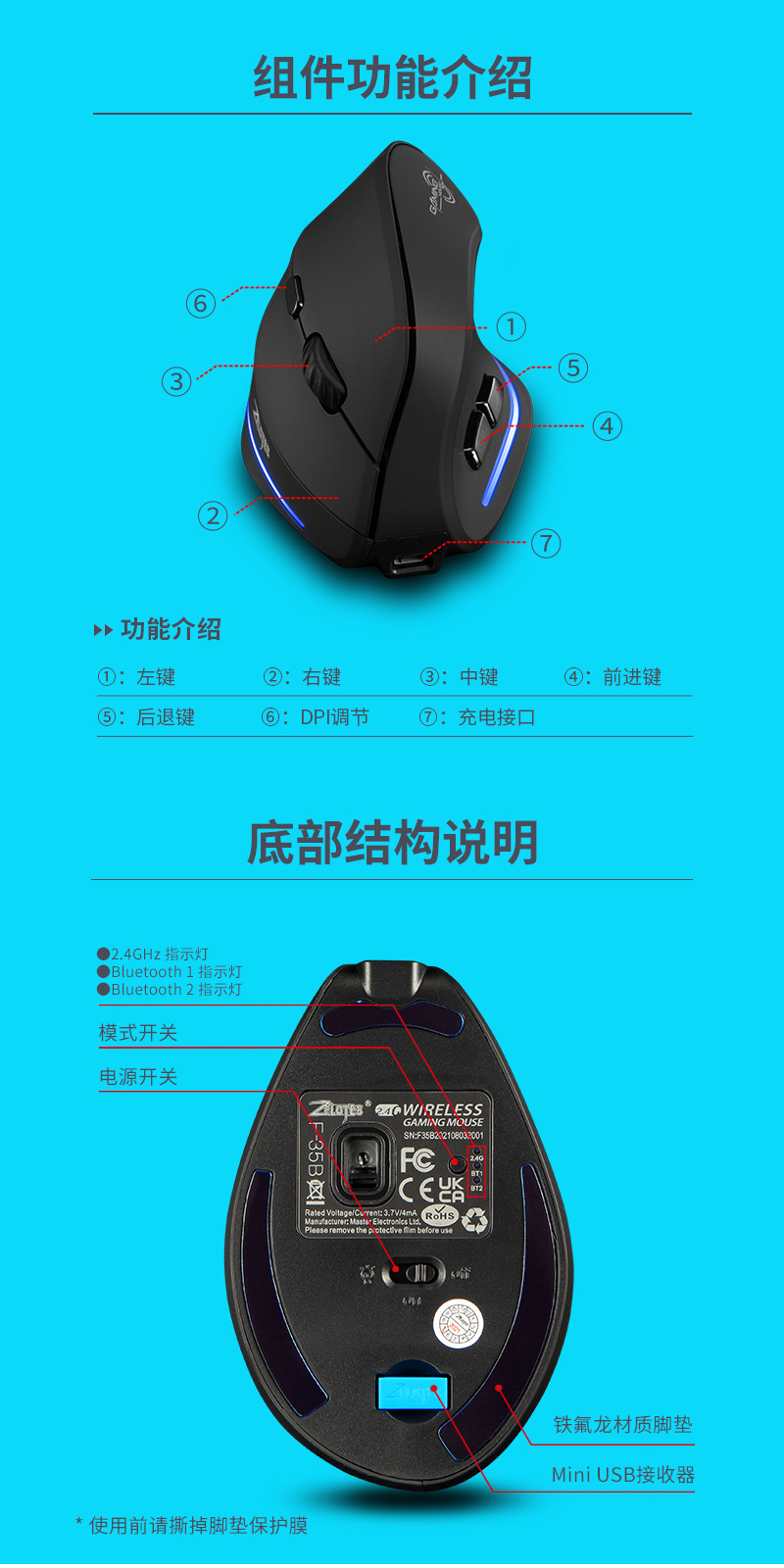

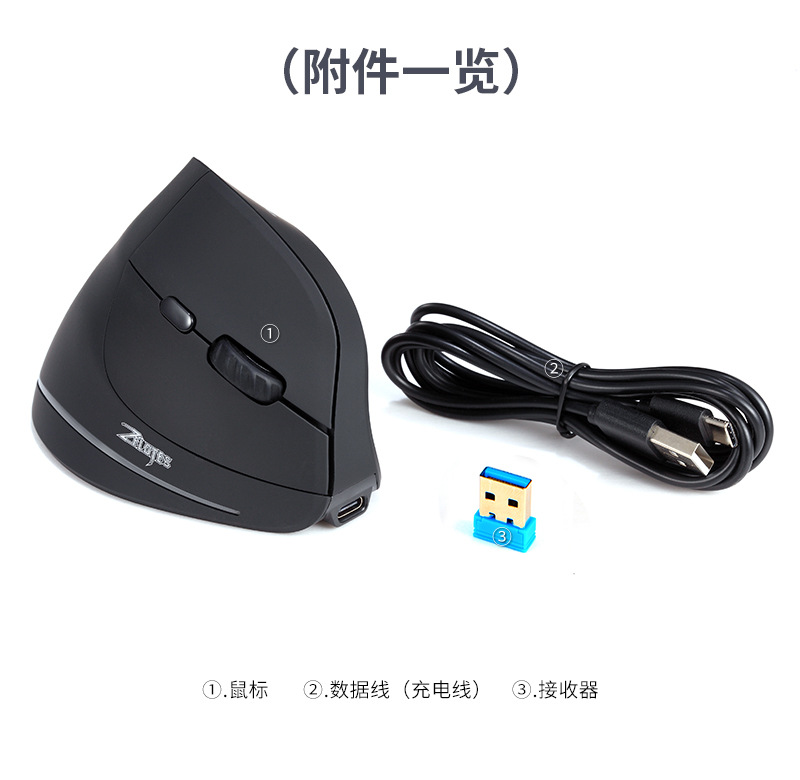

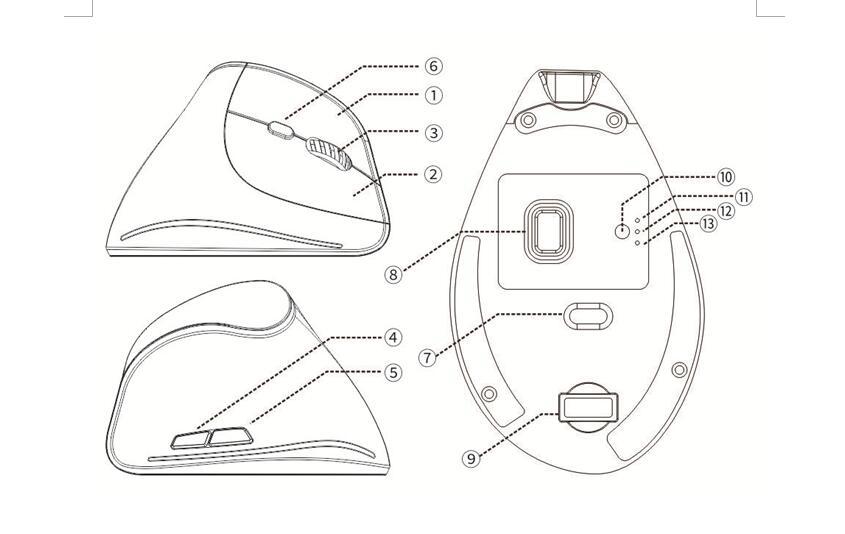
组件功能说明
●①左键 ②右键 ③中键 ④前进 ⑤后退⑥DPI调节键
⑦电源开关⑧透镜⑨接收器⑩模式切换键
⑪2.4GHz指示灯⑫蓝牙“1”指示灯⑬蓝牙“2”指示灯
规格参数
按键数:7键
循迹系统:光学
频率:2405MHz-2476MHz
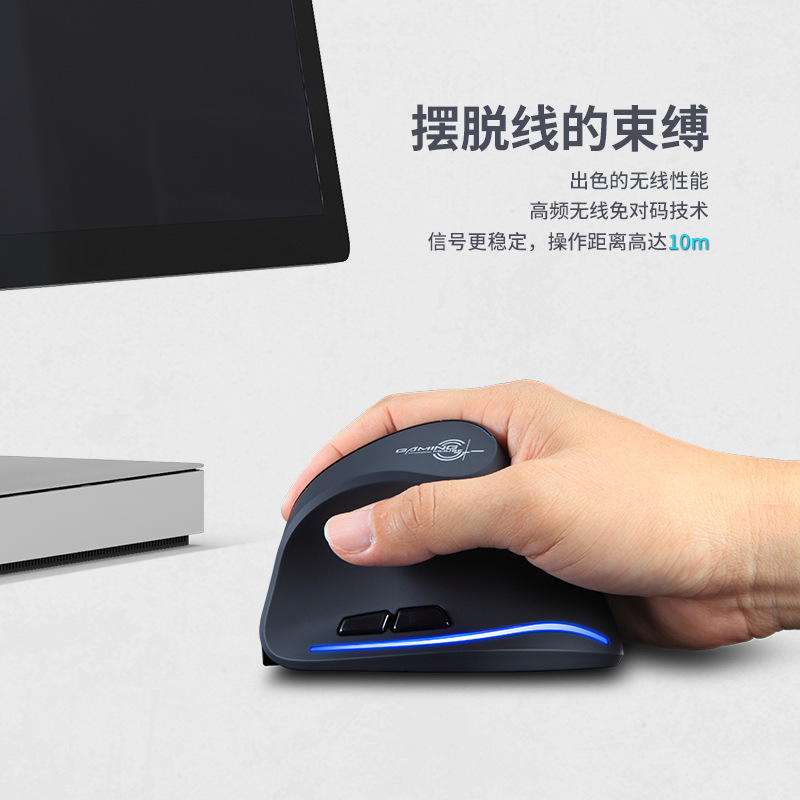
有效距离:>10m
工作电压/电流:3.7V3mA
按键寿命:300万次
滚轮寿命:120万转
产品尺寸:110*72*75mm
产品重量:115±5克
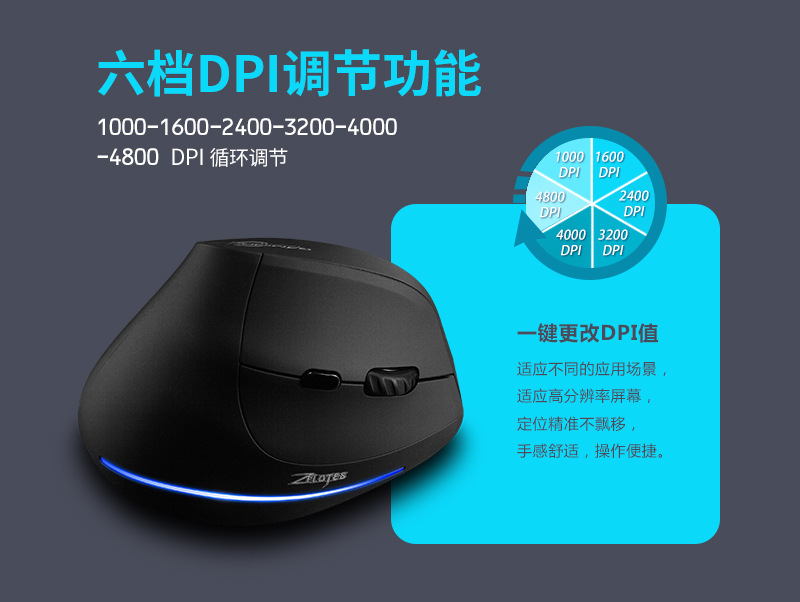
解析度:1000-1600-2400-3200-4000-4800DPI
2.4GHz回报率:250Hz
蓝牙回报率:90Hz
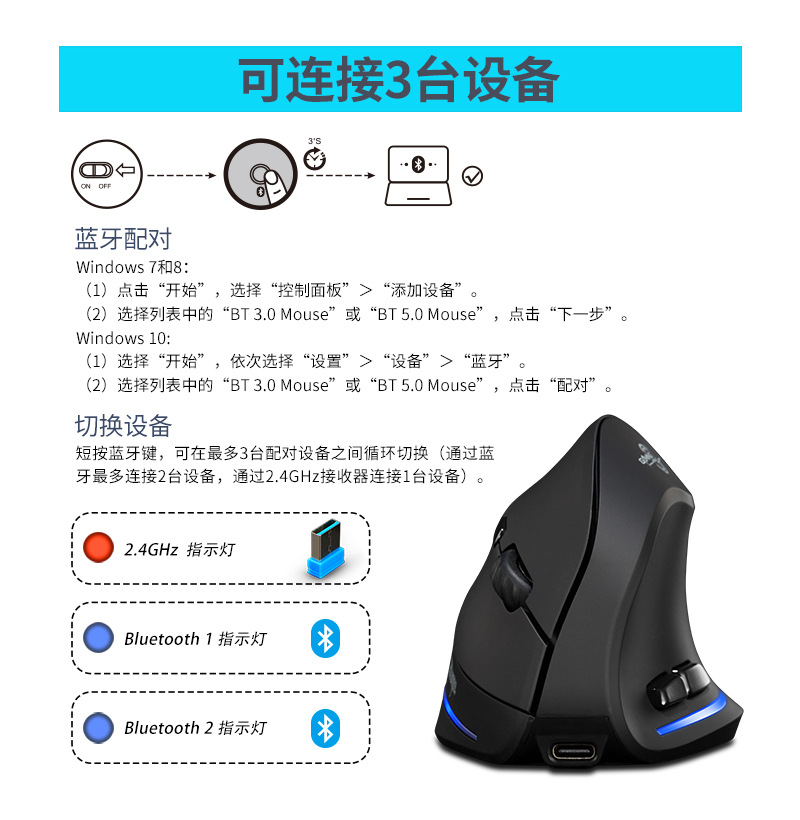
【蓝牙模式】
A.配对您的第一个设备。
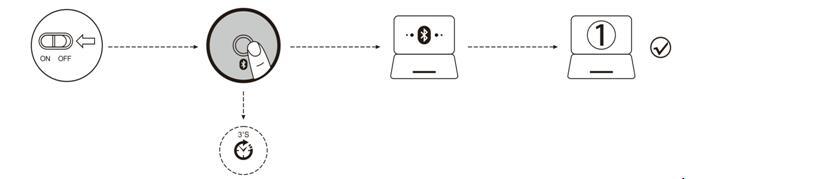
1.打开鼠标电源开关。
2.长按蓝牙键3秒以上,蓝灯快闪,鼠标在2分钟内将处于可被搜索状态。
3.在您的设备上完成蓝牙配对:
Windows 7和8:
(1)点击“开始”,选择“控制面板”>“添加设备”。
(2)选择列表中的“BT 3.0 Mouse”或“BT 5.0 Mouse”,点击“下一步”。
Windows 10:
(1)选择“开始”,依次选择“设置”>“设备”>“蓝牙”。
(2)选择列表中的“BT 3.0 Mouse”或“BT 5.0 Mouse”,点击“配对”。
B.配对您的第二个设备。
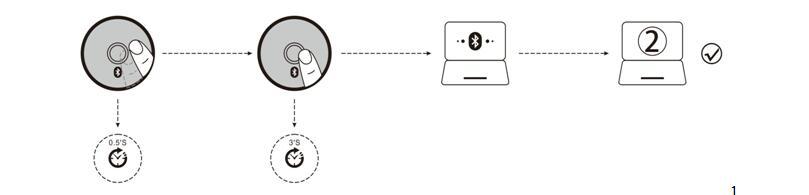
1.短按蓝牙键切换信道。
2.按照“配对您的第一个设备”的步骤2、3完成连接。
3.切换设备。
短按蓝牙键,可在最多3台配对设备之间循环切换(通过蓝牙最多连接2台设备,通过2.4GHz接收器连接1台设备)。
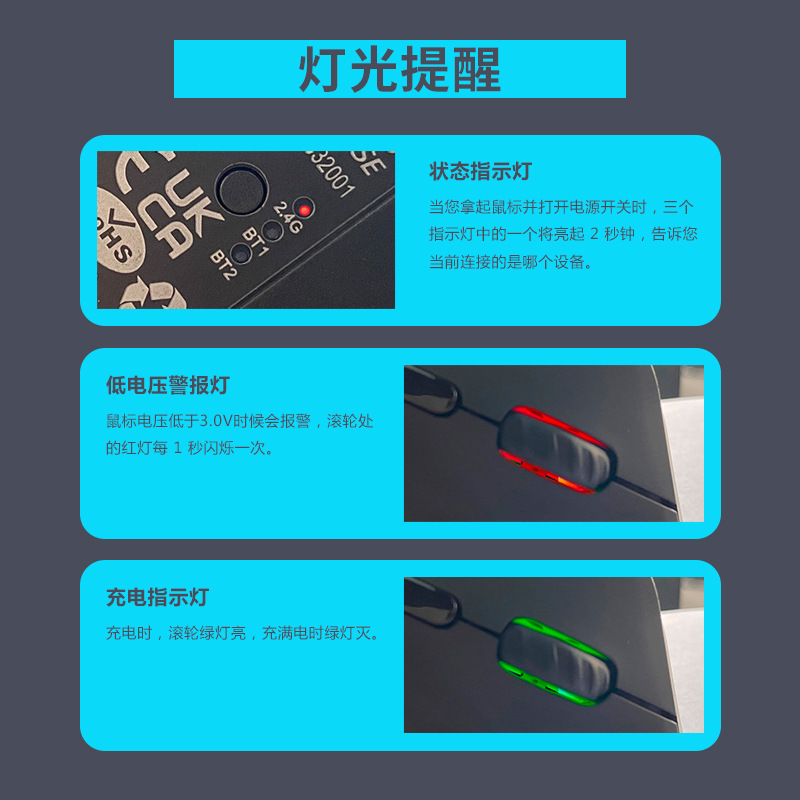
状态指示灯
拿起鼠标时,打开底部“on”开关,可通过3个不同的指示灯常亮2秒来判断当前连接的是哪台设备。
低电提示:
当你使用鼠标时,滚轮处的红灯会每隔1秒快速闪烁1次。
充电指示:
充电时,滚轮亮绿灯,充满电绿灯熄灭。
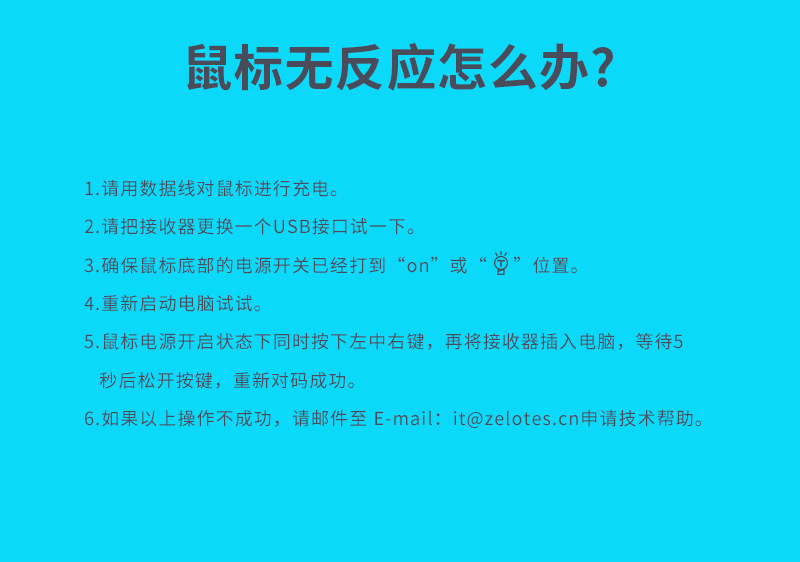
鼠标无反应怎么办?
1.请用数据线对鼠标进行充电。
2.请把接收器更换一个USB接口试一下。
3.确保鼠标底部的电源开关已经打到on或 位置。
位置。
4.重新启动电脑试试。
5.鼠标电源开启状态下同时按下左中右键,再将接收器插入电脑,等待5秒后松开按键,重新对码成功。(对码时鼠标与接收器距离在30CM以内)
6.如果以上操作不成功,请邮件至 E-mail:it@zelotes.cn申请技术帮助。
(English)
Component Function Description
●①Left Click ②Right Click ③Scroll Click / Scroll Wheel ④Forward button⑤back⑥DPI Switch⑦Power Switch⑧lens⑨receiver⑩Mode Switch
⑪2.4GHz Indicator⑫Bluetooth 1 Indicator⑬Bluetooth 2 Indicator
Specifications
Number of Buttons: 7
Tracking System: Optical
Frequency: 2405 MHz–2476 MHz
Effective Distance: >10m
Operating Voltage/Current: 3.7 V3 mA
Button Durability: 3 million times
Wheel Durability: 1.2 million times
Product Dimensions: 110*72*75mm
Product Weight:115 ± 5 g
DPI: 1000-1600-2400-3200-4000-4800 DPI
2.4 GHz Report Rate: 250 Hz
Bluetooth Report Rate: 90 Hz
【Bluetooth Mode】
A. Pair Your First Device.
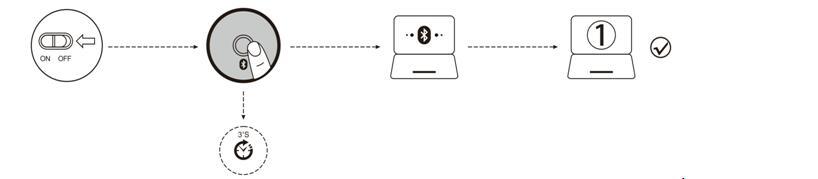
1. Turn on the power switch.
2. Press and hold the Bluetooth button for 3 seconds or more. The blue light flashes rapidly, and the mouse will enter Discoverable mode for 2 minutes.
3. Compete Bluetooth pairing on your device:
Windows 7 and 8:
(1) Click Start, then select Control Panel > Add Devices.
(2) Select BT 3.0 Mouse or BT 5.0 Mouse in the list, then click Next.
Windows 10:
(1) Click Start, then select Settings > Device > Bluetooth.
(2) Select BT 3.0 Mouse or BT 5.0 Mouse in the list, then click Pair.
B. Pair Your Second Device.
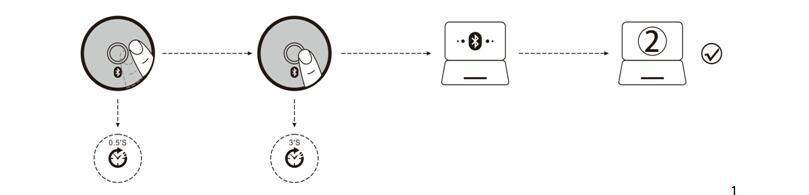
1.Short press the Bluetooth button to switch channel.
2. Follow Steps 2 and 3 in “Pair Your First Device” to complete pairing.
3. Switch between devices.
Short press the Bluetooth button to switch between up to 3 paired devices (Up to 2 devices via Bluetooth and 1 device via the 2.4 GHz receiver).
Status Indicator
When you pick up the mouse and turn on the power switch, one of the three indicators will light up for 2 seconds to tell you which device is currently connected.
Low Battery Reminder:
When you use the mouse, the red light at the scroll wheel will flash once every 1 second.
Charging instructions:
When charging, the scroll wheel lights up in green, and the green light is off when fully charged.
What If the Mouse Does Not Respond?
1.Please charge the mouse with USB cable.
2.Please try to replace the receiver with an USB interface.
3.Make sure the power switch on the bottom of the mouse is “on”or at position.
4.Try to restart the computer.
5.Press the left、middle、right key when the power is on, and put the receiver into the computer, waiting for 5 seconds, and then you could rematch code successfully. (The mouse and the receiver should be within 30 cm during code matching)
6.If it is still unsuccessful, please email to E-mail: it@zelotes.cn for technical assistance.
(Note: Illustrations referenced in this manual are for function description purpose only. Please refer to the actual product when purchasing!)
(Français)
| 수입신고 1USD |
구매/결제대행 1CNY |
TT송금 1CNY |
|---|---|---|
| 6.7 CNY | 206.99 KRW | 0.145 USD |