




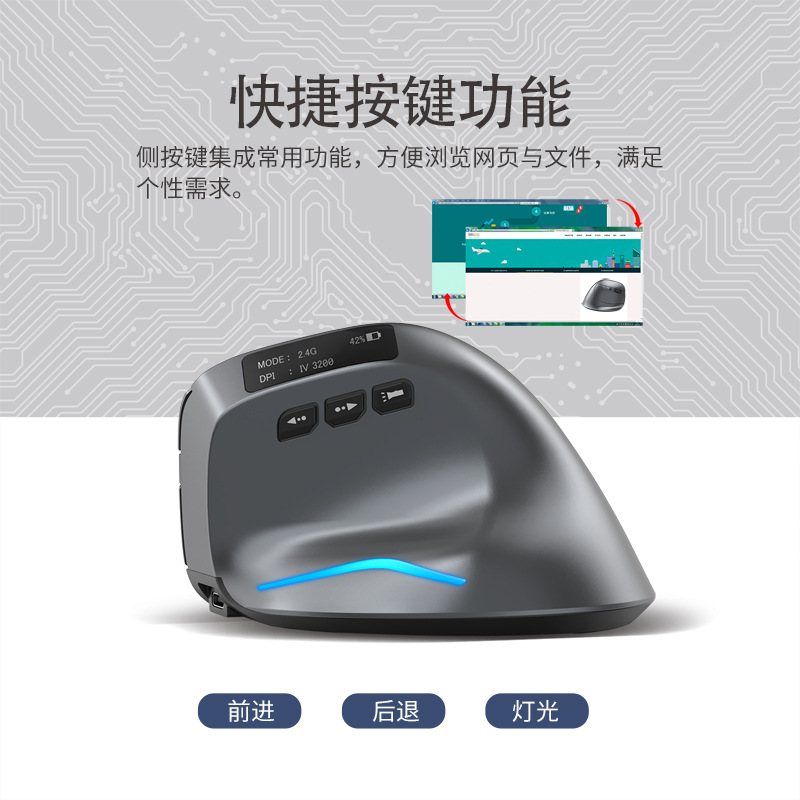


组件功能说明
① 左键 ② 右键 ③ 中键
④ 前进键 ⑤ 后退键 ⑥ 灯光切换键
⑦ DPI键 ⑧ 蓝牙键 ⑨ 充电指示灯
⑩ 2.4GHz指示灯 ⑪ 蓝牙指示灯 ⑫ 电源开关
⑬ 接收器 ⑭ 透镜 ⑮ OLED显示屏
规格参数
按键数:8键
循迹系统:光学
频率:2402.85MHz-2480.85MHz
有效距离:≥10m
工作电压/电流:3.7V20mA
按键寿命:≈500万次
滚轮寿命:≈120万转
产品尺寸:110*72*75mm
产品重量:110±5克
解析度:1000-1600-2400-3200 DPI
2.4GHz回报率:125Hz
蓝牙回报率:115Hz
鼠标无反应怎么办?
1.请用数据线对鼠标进行充电。
2.请把接收器更换一个USB接口试一下。
3.确保鼠标底部的电源开关已经打到on或灯泡位置。
4.重新启动电脑试试。
5.同时按住鼠标右键+中键,打开底部电源开关,插入USB接收器,等待5秒后同时松开按键,重新对码成功。(对码时鼠标与接收器的距离请保持在30cm以内)
6.如果以上操作不成功,请邮件至 E-mail:it@zelotes.cn申请技术帮助。
【蓝牙模式】
A.配对您的第一个设备。

1打开鼠标电源开关。
2.长按蓝牙键3秒以上,蓝灯快闪,鼠标在2分钟内将处于可被搜索状态。
3.在您的设备上完成蓝牙配对:
Windows 7和8:
(1)点击“开始”,选择“控制面板”>“添加设备”。
(2)选择列表中的“Bluetooth Mouse”,点击“下一步”。
Windows 10:
(1)选择“开始”,依次选择“设置”>“设备”>“蓝牙”。
(2)选择列表中的“Bluetooth Mouse”,点击“配对”。
4.切换设备。
短按蓝牙键,可在最多2台配对设备之间循环切换(通过蓝牙连接1台设备,通过2.4GHz接收器连接1台设备)。
充电提示:
插入数据线,底部充电指示灯常亮表示充电中,熄灭表示充满电,或者通过显示屏识别
低压提示:
当电量达到30%,显示屏电池图形会闪烁提醒
状态指示灯:
拿起鼠标时,打开底部“on”开关,可通过2个不同的指示灯快闪来判断当前连接的是哪台设备,同时屏幕也会显示当前连接状态
解析度:
按下7号DPI循环键,光标移动速度在屏幕会进行显示,1000-1600-2400-3200 DPI共4档。
Component function description
① Left mouse button ② Right mouse button ③ Middle mouse button
④ Forward mouse button ⑤ Back mouse button
⑥ Lighting-mode switch button ⑦ DPI button ⑧ Bluetooth switch
⑨ Charging indicator light ⑩ 2.4GHz indicator light
⑪ Bluetooth indicator light ⑫ Power switch ⑬ Receiver
⑭ Optical mouse sensor lens ⑮ OLED screen
Specification
Number of buttons: 8
Motion sensor type: Optical
Frequency: 2402.85MHz-2480.85MHz
Wireless range: ≥10m
Operating voltage/current: 3.7V20mA
Mouse lifespan: about 5 million clicks
Scroll wheel lifespan: about 1.2 million rotations
Item dimension: 110*72*75mm
Item weight: 110±5 g
Sensitivity stages: 1000-1600-2400-3200 DPI
2.4GHz receiver: 125Hz
Bluetooth receiver:115Hz
What to do if the mouse has no response?
1.Plug the cable into the power supply and charge the mouse.
2.Plug the receiver to another USB port.
3.Make sure the Power switch at the bottom of the mouse is on or has been slid to  .
.
4.Try restarting the computer.
5.Simultaneously hold the right and middle mouse buttons, open the switch button, plug in USB receiver and release the buttons after 5 seconds to reset the existing pairing. (While pairing, keep the mouse and receiver within a 30-cm radius.)
6.Get technical support from it@zelotes.cn if the above troubleshooting fails to solve the problem.

1.Turn on the mouse’s Power switch.
2.Press and hold the Bluetooth switch for more than 3 seconds. Blue indicator light will blip and for the next two minutes, the Bluetooth mouse will be visible to all for pairing.
3.Pair your Bluetooth mouse with your device.
For Windows 7 and Windows 8 operating systems:
(1)Press “Start”, choose “Control Panel”- “Add a device”.
(2)Choose “Bluetooth mouse” among the list, press “Next”.
For Windows 10 operating system:
(1)Press “Start”, choose “Settings”- “Devices”- “Bluetooth”.
(2)Choose “Bluetooth mouse” among the list, press “Connect”.
4.Switch between devices.
Shortly press the Bluetooth button to switch between at most 2 paired devices. (Pair with the first device through Bluetooth and the second device through 2.4GHz receiver.)
Recharge indication:
plug in the cable; if charging has commenced, the charging indicator light at the bottom of the mouse will remain lit. Once the mouse is fully charged, the indicator light will turn off; at the same time, the OLED screen will also indicate that the mouse has been “fully-charged”.
Low-battery warning:
the battery icon on the screen will flash as a warning once the battery’s power level drops to 30%.
Status indicator lights:
pick up the mouse and slide the power to “ON7”, you can tell from the two different blipping indicator lights which device is currently being connected. In addition, the OLED screen will also display this information.
Mouse sensitivity:
Press the DPI button (button⑦) to display the four sensitivity stages:
1000/1600/2400/3200 DPI.
| 수입신고 1USD |
구매/결제대행 1CNY |
TT송금 1CNY |
|---|---|---|
| 6.45 CNY | 215.05 KRW | 0.145 USD |